Export and KDP package
The Spielbuchschmiede produces the interior and the cover as PDF, an ebook as EPUB and the action sheet for printing. It checks everything against the rules of the selected print profile.
Where you create the package
You create the package in the Book view. Open it in the editor with the Book view button. At the top is the Print package, ebook and action sheet card. KDP (Kindle Direct Publishing) is the print service of Amazon. You find the same card on the Cover page. Nothing is uploaded to KDP. You upload the files to KDP yourself later. How to prepare the volume step by step up to the upload is described under Publishing assistant.
On the Cover page you enter the Author and the Back cover text and, if needed, generate a motif. This is described under Images and character images.
Choosing a print profile
Under Print profile you decide by which rules the Spielbuchschmiede creates and checks the interior and the cover:
- KDP paperback: This is the default. The formats, page counts and margins for the Amazon KDP paperback apply.
- KDP hardcover: The formats and margins for the KDP hardcover apply. A hardcover has 75 to 550 pages. White paper with standard colour is not available. KDP gives the dimensions of the hardcover cover only in its own cover calculator. For this reason the Spielbuchschmiede does not create a cover for this profile, and the package contains the interior. You create the cover with the KDP cover calculator.
- Other printer (custom values): You enter the page width and height, the inside margin, the outside, top and bottom margins, the bleed of the cover and the paper thickness per page yourself. You find these values in the print specifications of your printer. The Spielbuchschmiede then only checks general rules: page count, format, margins, fonts, image sharpness, file size and the cover according to your dimensions. It does not know the specifications of a particular printer.
There are no profiles of their own for BoD and epubli yet. For them you use the profile for other printers.
The Spielbuchschmiede saves the selected profile for the volume.
Choosing format and paper
- Format in inches: the size of a page. The options are 5 × 8, 5.25 × 8, 5.5 × 8.5, 6 × 9, 6.14 × 9.21, 7 × 10, 8 × 10 and 8.5 × 11. The default is 6 × 9. That is about 15.2 by 22.9 centimetres.
- Paper: white or cream paper in black and white, white paper with standard colour or white paper with premium colour.
Then select Create print package. The export costs no credits.
What happens during creation
The export runs in three steps, which you can follow in the message below the button:
- Your book is being prepared for printing. The Spielbuchschmiede takes the content your book has at this moment.
- The interior and the cover are being created and checked.
- The files are being put together into a package.
The page updates itself. If the package is waiting for a free slot, you see The print package is waiting for a free slot. This can take a moment. If it takes longer than a minute, a hint tells you that you can leave the page. If your book changes during creation, you see The book was changed during creation. Please create the print package again.
The check before printing
The interior and the cover are checked against the KDP print rules. This check before printing is also called preflight. The result is shown separately for the interior and the cover. The most important points are at the top:
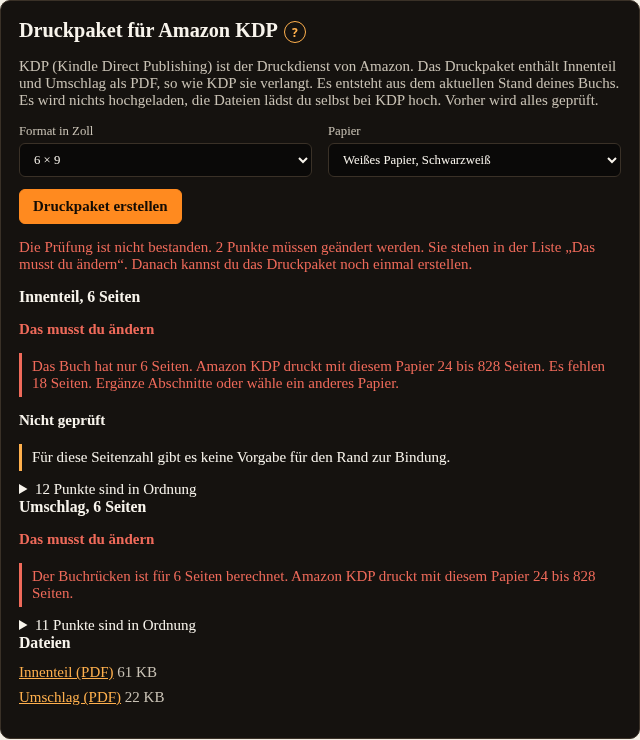
- You need to change this: These rules are violated. The package is only created once you have fixed them. Each point is written as a full sentence, for example: "The book has only 12 pages. Amazon KDP prints 24 to 828 pages with this paper. 12 pages are missing."
- Not checked: The Spielbuchschmiede could not check the rule for this book.
- Notes: The rule is met, but there is something to be aware of.
- Points that are fine: All rules that passed are listed below, collapsed. Select the row to read them.
The following checks exist. The page count and the margins depend on the selected print profile. With the profile for other printers, the messages say "the printer" instead of Amazon KDP.
Interior
- Section numbers and references: All numbers from 1 to the last one are used, and every reference leads to an existing section.
- Structure: The normal validation of the editor runs once more here.
- Page count: KDP allows 24 to 828 pages for paper. A short book fails here. A volume with 8 short sections, for example, had 12 pages and did not pass. A volume with 60 sections of about a hundred words each had 38 pages and passed.
- Page format: All pages have the selected format.
- Bleed: In the interior no content reaches the edge of the page.
- Greyscale: With black and white paper, all images in the interior are greyscale.
- Distance to the edge: The text keeps enough distance from the edge, slightly more towards the binding. With very few pages you see Not checked here, because there is no specification for the inside margin for this page count.
- QR code: The QR code leads to the phone page of your book.
- Fonts: All fonts are embedded in the document.
- Image sharpness: All images have at least 300 pixels per inch. An image below that can make the print look soft, and below 72 pixels per inch the check rejects it.
- File size and password protection: The file is not too large and has no password protection.
Cover
- Page count and spine: The spine is calculated for the page count of the interior. If the page count is not valid for the paper, an error is shown here as well.
- Size and bleed: The cover consists of back, spine and front with 0.125 inch bleed on all sides.
- Spine text: Below 120 pages there is no text on the spine.
- Barcode: At the bottom right of the back cover an area of 2 by 1.2 inches stays free.
- Distance to the edge: Text keeps a distance of 0.25 inch from the trim edge.
- Fonts, images, file size and encryption are checked as for the interior.
The result
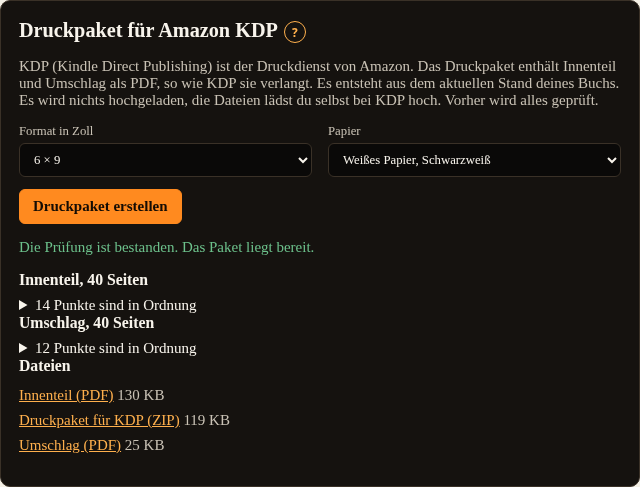
If the book passed the check, you see Validation passed. The package is ready. Below it, under Files, you find three downloads:
- Interior (PDF)
- Cover (PDF)
- Print package for KDP (ZIP) with the interior and the cover as PDF, the report of the check, a checksum file and a file README.txt
If the book did not pass the check, you see Validation failed. and how many points you need to change. The points are listed under You need to change this. The ZIP package is not created in that case. You can still download the interior and the cover as PDF and look at them. Change the points and select Create print package again.

The files are available for a limited time only. If a file has expired, the list shows no longer available. Create the package again in that case.
In case of a technical error you see The print package could not be created. Please try again later.
Ebook as EPUB
Create ebook (EPUB) produces an EPUB 3 file from the same version of your book as the PDF. The section numbers are the same as in print.
- Every section is a page of its own with an anchor. Every choice at the end of a section is a link that you tap on the reading device.
- Turning the page does not lead from one section to the next. You reach a section only through the choices, the section index or the navigation. When turning pages, reading devices go through the title page, the rules, the action sheet, the random table and the section index.
- The navigation contains the rules, the action sheet, the random table and the section index.
- Sections with a combat or a check contain a note with links to the random table and the action sheet. In the random table every number leads to the display of the random number. From there you go back to the section with the back button of the reading device.
- The cover image and the section images are reduced in size for reading devices. The metadata of the book contains the title, author, language German, an identifier, the date of the change and, if you entered it under Action sheet and ebook, the ISBN.
The Spielbuchschmiede checks the ebook itself: structure of the file, list of files, well-formedness of all pages and that every link leads to an existing place. The industry validation tool epubcheck does not run in the Spielbuchschmiede. Check the file yourself with epubcheck if needed.
Without a book licence you create a preview. It carries the word Preview on the title page and below every section.
Kindle and KDP
KDP accepts EPUB files directly. Upload the file for the KDP ebook, select EPUB as the manuscript and check in the KDP previewer that the links between the sections work. Some Kindle devices and apps also page through sections that are meant to be skipped in reading order. The links of the choices always work.
Action sheet
The action sheet is created from the rule set of your series. It has fields for the stats, boxes for items, a combat log, lines for scars and notes. If the series has a group, one sheet is created per character.
Under Action sheet and ebook you select Customise action sheet:
- Show: Shows or hides a part of the sheet.
- Heading: The label of the part.
- Move up and Move down: Arrange the parts.
- Lines: The number of lines for scars, combat log and notes.
- Label and hide stats: Each stat can get a different label or be hidden.
Below the setting, the Preview shows the sheet. Select Save. The sheet is then included as a page in the interior, in the ebook and in the book view. Restore default sheet resets the arrangement until you save again.
Create action sheet as PDF produces two files for printing: Action sheet for A4 (PDF) and Action sheet for Letter (PDF). For this you also need the book licence. Without it you create a preview with a watermark.