Phone and QR code
The phone accompanies your book. It keeps track of stats, inventory, puzzles with hints and quests, gives random numbers and receives messages. A QR code in the book opens it.
Your book is fully playable without a phone. The phone is an extra: It holds the status of your character, gives out random numbers and shows messages that you have stored in individual sections. Whoever opens the phone page needs no account and no sign-in.
When opened on a phone for the first time, the page briefly explains what the four tabs are for. Select Got it to close the explanation. You can open it again later with Show explanation.
Opening the phone page
There are two ways:
- In the editor: Select Phone companion at the top. The phone page of your book opens in a new tab. Open it on the phone by sending the address from the address bar there or by scanning the QR code.
- With the QR code: In the Book view there is a QR code under The phone as a companion. Your reader scans it with the camera of the phone and lands on the same phone page. The code is also part of the printed book. Open the book view with the Book view button in the editor and the code appears.
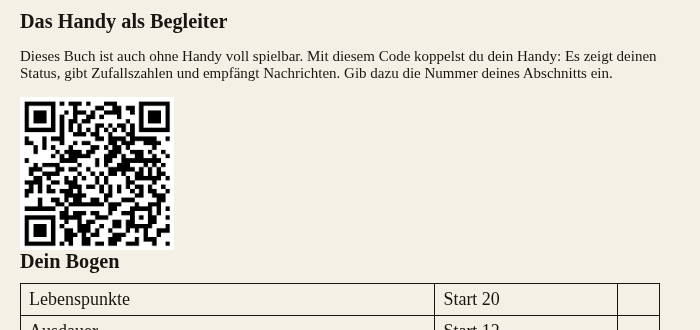
A printed QR code stays valid even if you change your book afterwards.
The tabs
The phone page has five tabs at the bottom, within reach of the thumb. The Inventory tab only appears if your rule set has items. If your rule set has a difficulty setting, the page asks for it when opened for the first time. After the first load it also works without internet. Only puzzles and new messages need a connection.
Status
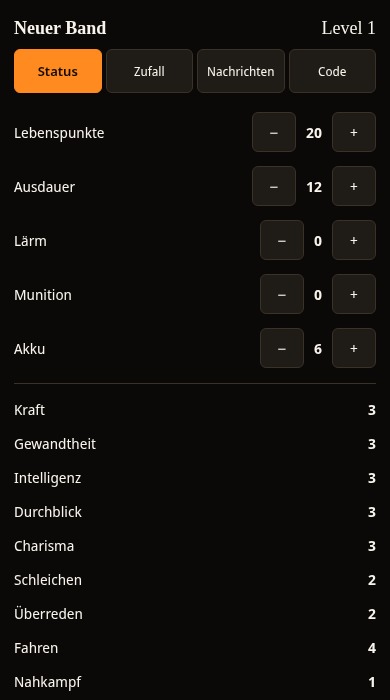
This is where the stats of the character are shown. For stats such as health points there are the − and + buttons with which your reader changes them. Attributes and skills are fixed numbers. Further down are the experience with the buttons +25 and +50, the weapon to choose and the scars. If your book has a group, there is a button for each member. When the level rises, a note tells how many points are to be distributed.
Inventory
The Inventory tab shows the items your reader carries. If the book gives the reader an item, they select it under Receive item and put it into the inventory. With Drop they remove it again. If two items fit a combination defined in your rule set, a button for the combination appears below. The book lists the same combinations in a table in the rules section.
Random
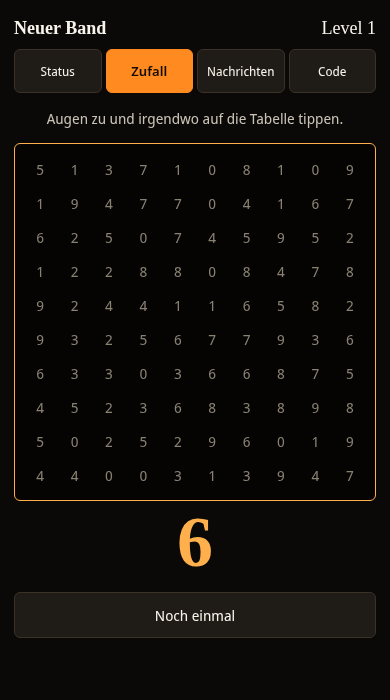
The Random tab replaces the printed random table. Your reader closes their eyes and taps somewhere on the table. The phone then shows the whole table and below it the selected digit from 0 to 9. With Once more you get the next random number.
Messages
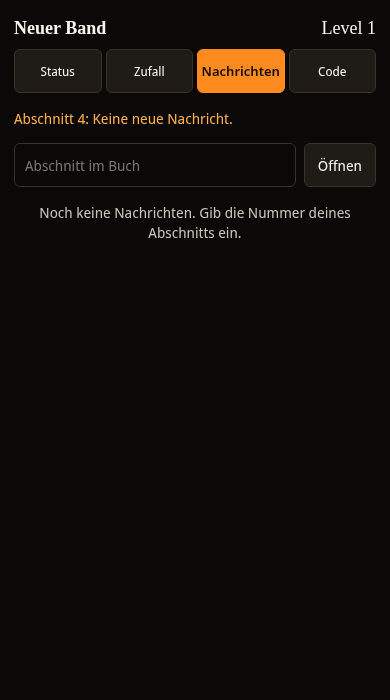
On the Messages tab your reader enters the number of their section and selects Open. If there is a message for the section, it appears with sender and text. You create the message in the editor in the section under Message to the paired phone. There you enter the sender and the text. An empty text means: no message.
What matters is the number from the book. Your title in the editor does not count here. The numbers are shown at each section in the book view. For a section without a message you see Section 4: No new message. If the number does not exist, you see This section does not exist. Messages that have already been opened stay in the tab.
If the section has a puzzle, it appears above the messages. The reader enters their answer, and the server checks it. The hints appear one by one. Each hint costs the stat you set in the puzzle. A QR code in print opens the section with its puzzle directly, without the reader typing in the number. How you place such codes is described under Hybrid gamebook.
Code
The Code tab shows the Character code for the next volume, as text and as a QR code, together with the stats to copy down. In the following volume your reader enters the code and selects Apply character. Their character keeps level, stats, weapons, scars and items from the last volume. Below is the saved game: A Continuation code and, for signed-in readers, a saved game in the account carry it over to another device. With Reset everything the reader starts again after a prompt.
Apps on the phone
Under Apps on the phone in the editor of the volume you decide what your reader finds on the home screen. Turn on Use home screen with apps, choose the apps and arrange them. Without this setting the phone continues to show the areas Status, Inventory, Random, Messages and Code. The areas are also available as apps.
* Games and tools: Snake, 2048, Minesweeper, Memory, Calculator and Stopwatch run without internet and without advertising. The high scores stay on the phone. * Story: You fill in Contacts, Gallery, Browser, Notes, Music, Weather and Clock yourself. The browser only shows invented pages from your volume. You choose the images from the images of your volume or upload your own. You choose music from the pieces you have released for readers with the soundtrack function. The reader writes notes themselves, and they stay on their phone. * Unlocking: Each entry can become visible when the reader has opened a certain section on the phone, owns an item or a status applies. A story app without a visible entry is not on the home screen. * Links: The QuizTreff app opens quiztreff.de in a new tab, where the reader can play a few quizzes as a guest. You can also create your own links. Only addresses with HTTPS are allowed. The reader sees the note External site. * Background: You choose one of five backgrounds. At the top the phone shows clock and battery. If time is turned on in the rule set, the clock shows the game time. If the rule set has a stat with the key akku or battery, the battery shows this value.
Everything needed to play must be in the book text. If the solution of a puzzle is only in an app, the analogue check under Hybrid gamebook reports Solution only in an app. The apps appear on the phone as soon as you publish the volume again. QR codes that are already printed continue to point to the version they had at the time of printing.
The status stays on the phone
The phone page saves the status in the browser of the phone. If your reader reloads the page, everything is kept. This applies to this phone and this browser. For another device they need the continuation code or their account.