Validation
Validation finds dead ends, sections that cannot be reached and combats that are too hard, before your reader does.
Starting validation
In the editor, select Validate. You find the button at the top in the header and, once all texts are there, also in the Next step line. Validation costs no credits.
You see the result immediately, even if a section is open or you are on a phone:
- Below the header is a summary, for example Validation: 2 errors, 1 note or Validation: no errors. It stays until you do something else. With Go to first error you jump straight to the section with the first error. With Show result you get to the whole report.
- On the right the Validation report is at the very top of the column. With Close you hide it.
- On a phone the page switches to the Validation area. With the three areas Map, Section and Validation at the top you switch back and forth.
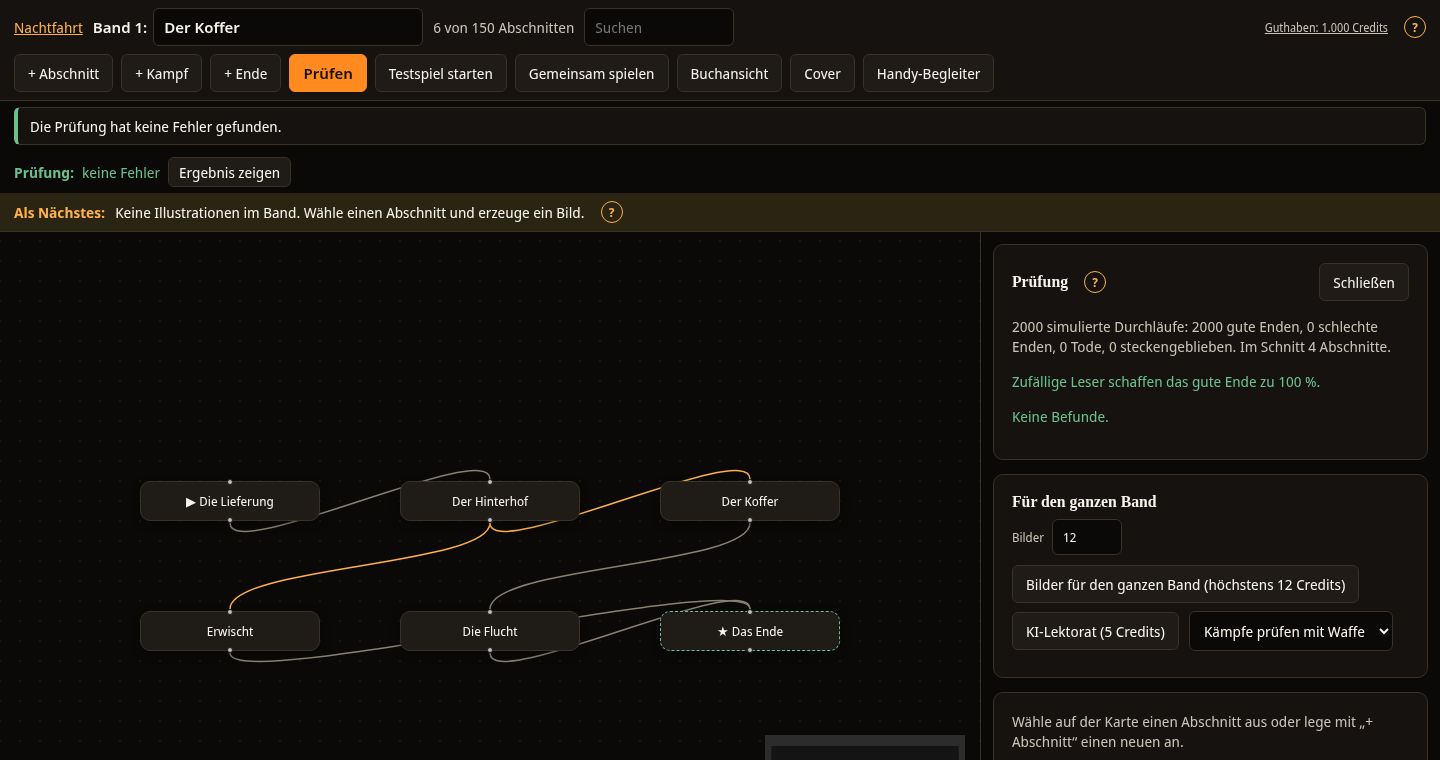
What the report shows
First it says how the Spielbuchschmiede played through your volume: "2000 simulated playthroughs: 399 good endings, 1601 bad endings, 0 deaths, 0 stuck. On average 6 sections." So the Spielbuchschmiede plays the volume very many times with random choices. Stuck means that a playthrough could not continue.
Below that it says how often random readers reach the good ending, for example "Random readers reach the good ending 20% of the time." If the value is below 20%, the line turns orange. The volume is then very hard. More safe paths or weaker opponents make it fairer.
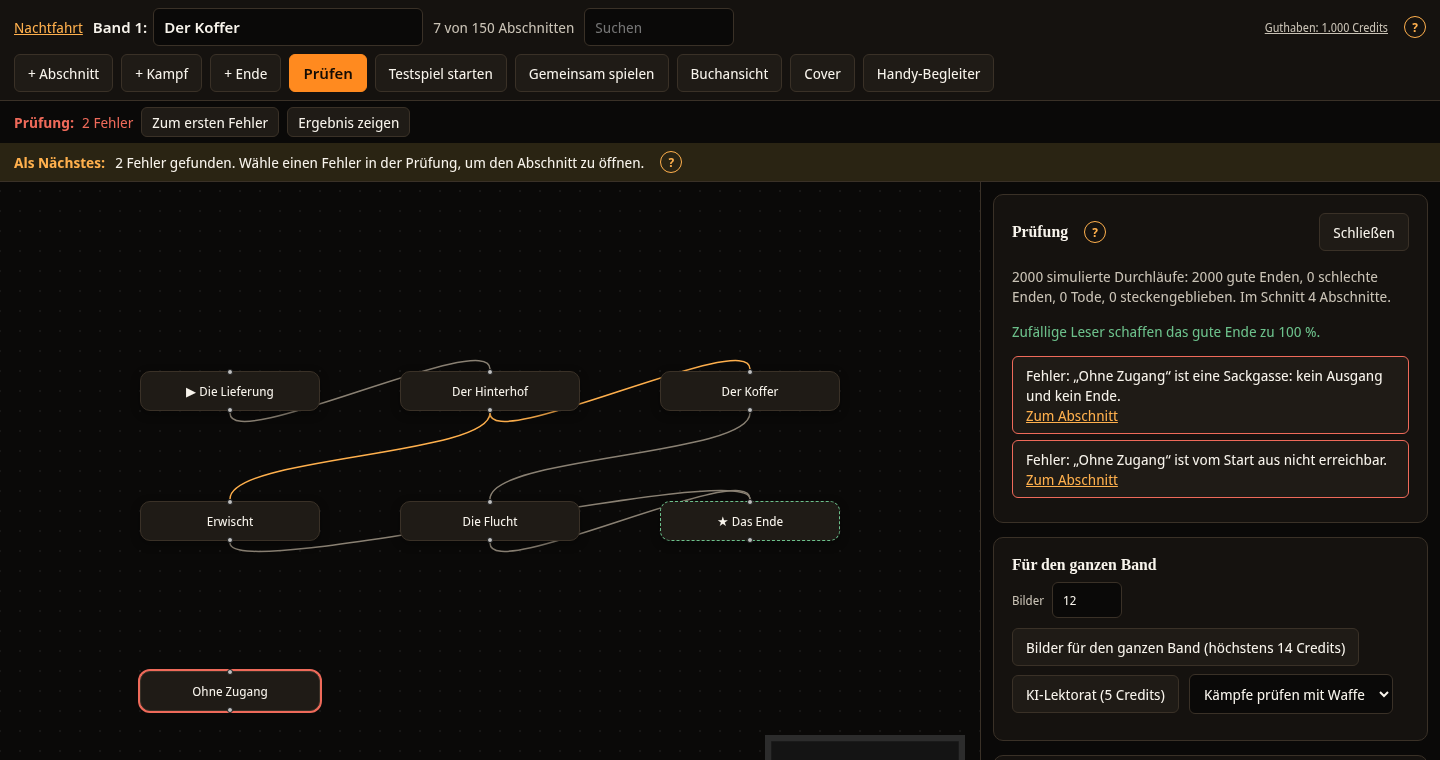
Then come the findings. An Error must be fixed, a Note is a warning. Clicking a finding opens the section and shows it on the map. On the map every section with an error has a red frame. If it says No findings, validation found nothing.
Visits and colouring the map
Below the findings is the Visits card with the numbers from the 2000 playthroughs. Random readers decide without a plan. The numbers show where your volume is well visited and where it is not.
- With Colour map by share of visits, every section on the map gets a colour and, after the title, a number, for example "63%". The number is the share of playthroughs that visited the section at least once. The colours run from dark blue (no playthrough) through grey to yellow (at least 60%). The scale can also be told apart with colour vision deficiency, and the number states the value as text as well.
- Almost never visited names sections that fewer than 2% of the playthroughs reach, even though a path leads there from the start. Usually the condition is too strict or the check too hard.
- Bottleneck: everyone has to pass through here names sections where several paths meet and which almost every playthrough visits. Choices before them then change nothing about the path after them.
- Endings shows how often each ending is reached.
- Under Numbers per section you see how often each choice was selected, how often checks succeed and how combats end: victory, defeat or escape.
Clicking a section in the lists opens it and shows it on the map. The playthroughs are fixed with the seed of the volume. With the same volume and the same rule set, the result is always the same. For a very large volume, validation stops after about four seconds and works with the playthroughs played up to then.
Checking texts without AI
Validation includes the Check texts without AI card. It costs no credits and finds fixed patterns in the text. Each note names the section, the place in the text and a suggestion. With Go to location the Spielbuchschmiede opens the section and marks the place in the text field.
- Repeated word: for example "in in".
- Double space: several spaces in one line.
- Straight, English or unclosed quotation mark: In German, „ opens at the bottom and “ closes at the top.
- Reference to a number and Fixed number in the text: If the text says, for example, "Turn to 17", the Spielbuchschmiede compares the number with the sections the choices lead to. Even a correct number is a note, because the numbers change as soon as sections are added. Create a choice instead.
- Name spelt differently: A rarely occurring word looks like a name from the series bible, for example "Marte" instead of "Marta". Names from the bible are known automatically.
- Item missing in the rule set: An item of the series bible appears in the text but is not an item in the rule set.
- Very short section (under 15 words, endings excluded) and very long section (over 400 words).
- Same text for choices: Two choices in the same section read the same.
Sections without text are reported further up as the note "has no text yet".
With Hide an individual note disappears. The browser remembers the hidden notes for this volume. With show hidden and Show again you bring them back. If the place in the text changes, the note reappears.
Spelling is checked by your browser. The text fields are set to German, and misspelt words are underlined in red. The Spielbuchschmiede has no dictionary of its own. With the menu of the browser you add a word to its dictionary.
Findings and what you do
Errors
- There is no start section. and There is more than one start section. Select the Start field on exactly one section.
- There is no good ending. Create a section of the type Ending and select Good ending.
- "Section" cannot be reached from the start. No path leads to this section. Connect it to another section through a choice.
- "Section" is a dead end: no exit and no ending. The reader cannot continue. Create a choice or make the section an ending.
- "Section": The choice "Text" leads nowhere. Select a destination under Continue to or delete the choice. This also happens if you have only just created a new choice.
- "Section" refers to a section that does not exist. Set the destination of the choice again.
- "Section" is a combat without an opponent. Enter an opponent under Combat.
- "Section": A section must be set for victory and for defeat. Select a section under On victory, continue to and under On defeat, continue to.
- "Section" requires "Item", but the item cannot be obtained anywhere. Create an effect that gives the item, or remove the condition.
- The check or condition uses a stat that no longer exists. Select another stat in the check or condition.
- Group mode is on, but the group has no members. Create members in the rule set or set The reader plays to One person.
- "Section" is a combat, but the rule set has no stat for life or no weapon. Create a stat for life and a weapon in the rule set or turn the section into a normal section.
Notes
- "Section" has no text yet. Write the text or have it written.
- "Section" is an ending but has exits. An ending needs no choices. Delete them if they are not intended.
- "Section" requires the status "Status", which is never set anywhere. Create an effect that sets the status.
AI review
With AI review in the For the whole volume card, the AI reads the whole volume. It points out contradictions and weaknesses in the text. Each note comes with a suggestion. Clicking the note opens the section. The review uses credits. If the AI finds nothing, you see No problems found. The notes are AI-generated. Decide for yourself whether they are right.
Checking combats
In the For the whole volume card, choose a weapon under Check combats with weapon. The result appears in the report. The Spielbuchschmiede calculates for every combat how often it can be won with this weapon. If a combat is too hard, it says for example: "The Guard: winnable 2% of the time, then 82%". With the Make combats fairer button the Spielbuchschmiede lowers the stats of the affected opponents. If all combats are fine, you see All combats are fair with this weapon. The combat check costs no credits.
Drawing images
The For the whole volume card also contains Images for the whole volume. You do not need validation for this. The button is described under Images and character images.
After validation
If validation finds no more errors, play the volume through once. This is described under Test play. For printing there is a second, separate check. It is described under Export and KDP package.
You find further checks in the Studio: dead plot threads, unfair choices, the tension curve and an AI check with quoted evidence.