Your first book in ten minutes
In eight steps you go from an empty series to a book you can print.
This guide takes you once through everything you need for a gamebook. Buttons and fields are named here as you see them in the Spielbuchschmiede. Allow about ten minutes for the steps themselves, plus the waiting time of the AI functions.
Starting without AI
The Series page offers two ways to begin. Neither costs credits.
- Use the sample volume: You get the short volume "Der Leuchtturm" (The Lighthouse) with 15 sections, one check, two combats, two items and two endings as a copy in a series of its own. Read it in the editor, start a test play and change it however you like. You can create the copy up to three times.
- Create your first volume step by step: The Spielbuchschmiede asks you in five steps about the idea, the rule set, the first section and the first choice. After that you start a test play.
The editor shows short hints in some places. Select Got it to close a hint. Select Turn off all hints to hide them all. On the Series page you turn them back on under Sample volume and guided creation.
Before you start
- You are signed in. Confirm your email address using the link in the email and select the Confirm address button there. Until then all AI functions are locked. You can edit, validate and test play without a confirmed address.
- The AI functions use credits. Your balance is shown at the top of the editor. You can find more under Credits and costs.
Everything the AI writes, draws or plans is AI-generated. Read every result and edit it before you publish it.
Step 1: Create a series
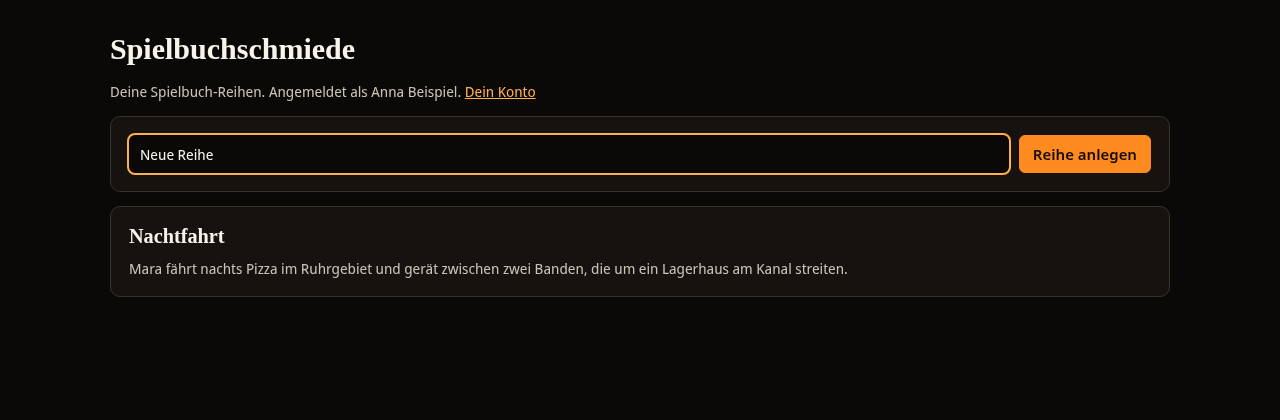
A gamebook always belongs to a series. The series holds together what applies to all volumes: the basic idea, the characters and the rule set. Open the Series page, enter a name under Name of the new series and select Create series.
Step 2: Capture the idea
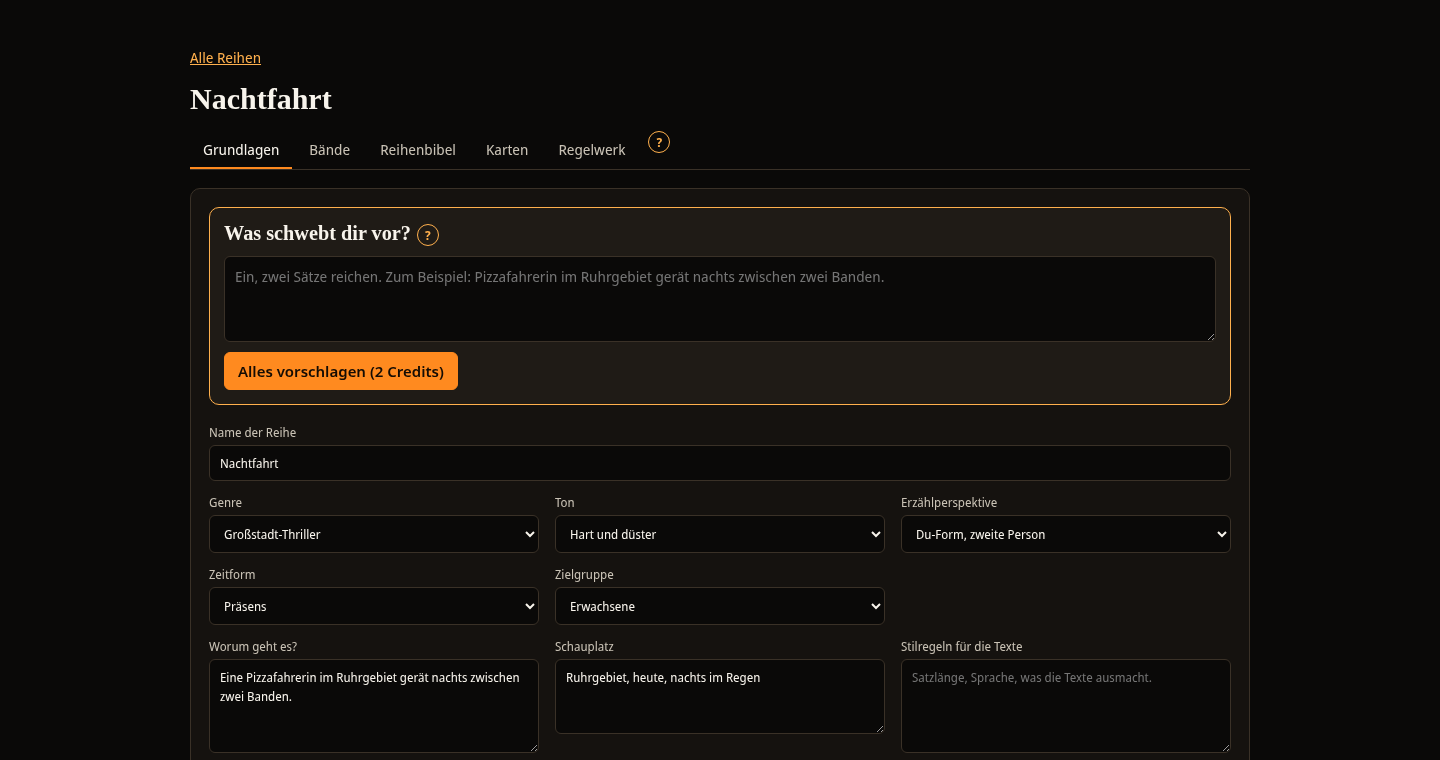
The series opens on the Basics tab. Write one or two sentences under What do you have in mind? and select Suggest everything. The AI fills in the fields and suggests entries for the series bible. The suggestions then appear in the fields but are not saved yet. Review them and select Accept everything. You can also fill in all fields yourself and select Save.
You can find more under Series and bible.
Step 3: Create a volume
Switch to the Volumes tab and select Create volume. Clicking the volume opens the editor.
Step 4: Let the AI plan the volume
An empty volume shows the Generate volume card on the right. Under Volume description, describe what this volume is about, enter the Number of sections, describe the plot in a few sentences under What should happen in this volume? and select Plan volume. The button shows the maximum price. You can change the title of the volume at any time in the header at the top. The AI creates sections with choices, checks, combats and endings. You then see them as boxes on the map.
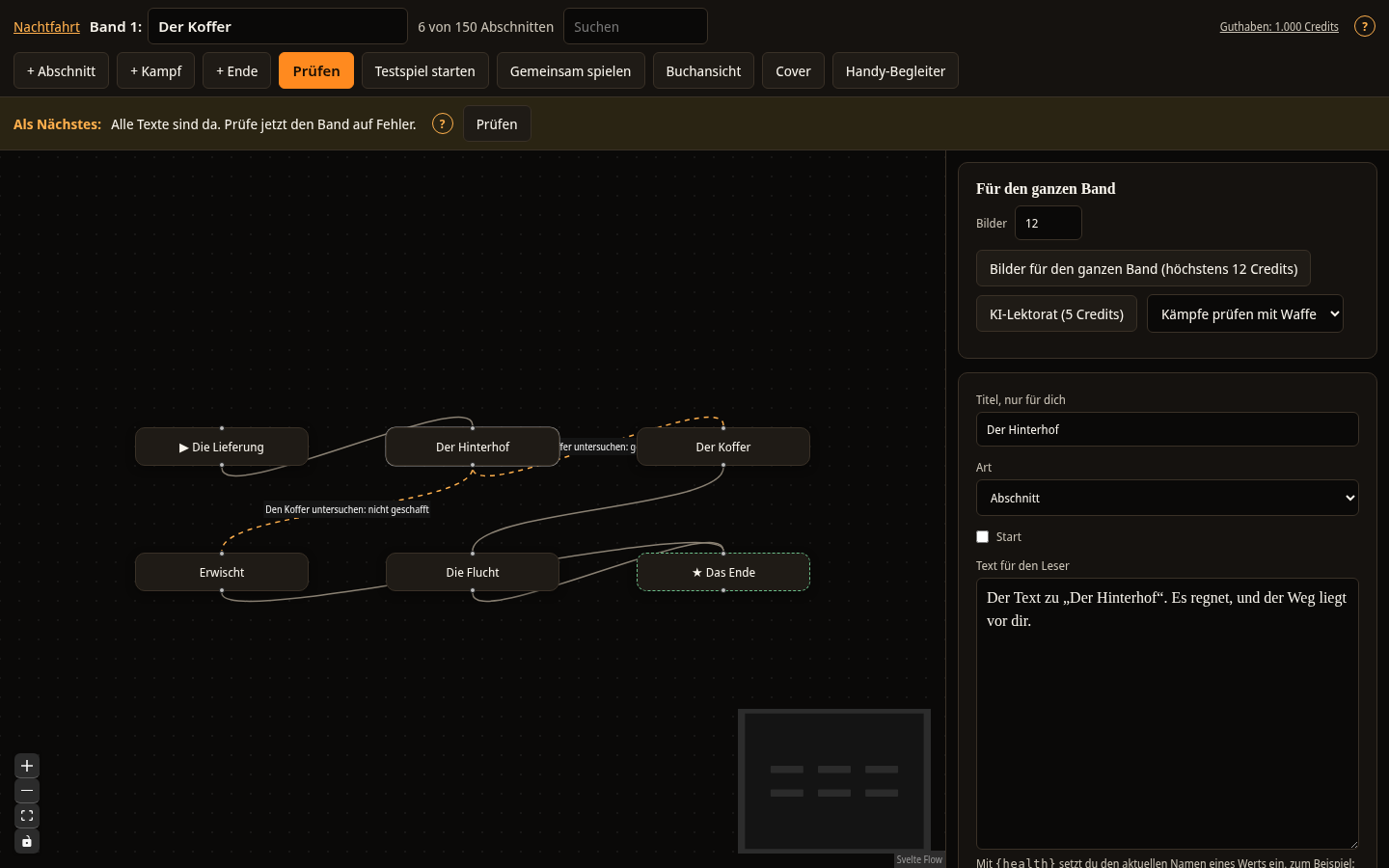
After planning, the map shows all sections. The Next step line then only shows steps that fit the volume. You can also work without AI. With + Section, + Combat and + Ending you create the sections yourself. You can find more under Sections and choices.
Step 5: Write the texts
The Next step line below the header always names the next useful step. If there are sections without text, select Write all texts there. The AI then writes the texts for up to 60 sections one after another. After that, click a section on the map, read the text and change it to your taste.
Step 6: Validate
Select Validate. The Spielbuchschmiede looks for dead ends, sections that cannot be reached and choices without a destination. Clicking an error opens the section. Validation is free. You can find more under Validation.
Step 7: Test play
Select Start test play and play your volume through once. If you want to play it with others, select Play together. This is described under Group and guests. You see whether the stats, checks and combats work the way you imagined. You can find more under Test play.
Step 8: Create the print package
Open the Book view, select Format in inches and Paper, and then Create print package. The Spielbuchschmiede produces the interior and the cover and validates them. If the book passes validation, you can download the files. You can find more under Export and KDP package.