Images and character images
You have images drawn for sections, characters, the cover and maps, or you upload your own images.
Images that you have drawn in the Spielbuchschmiede are created by an AI. They are AI-generated and use credits. If you publish a book with these images, label them as AI-generated. You can upload your own images for characters.
An image for a section
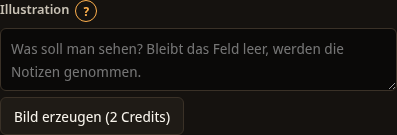
- Open the section in the editor and find the Illustration area.
- In the field below, describe what should be visible, for example: A warehouse by the canal at night in the rain. If you leave the field empty, the Spielbuchschmiede uses the notes of the section.
- Select Generate image.
The button shows the maximum price, for example Generate image (2 credits). While the image is being created, you see The image is being drawn. below it. After that the line below the header reports The image is ready., and your balance drops. The image appears in the section. With Draw again a different image is created. With Remove image you take it out again. On the map ▣ after the title marks sections with an image.
The Style of the illustrations that you set in the basics of the series applies to all images.
Images for the whole volume
You can have several sections illustrated in one step. To do this, open the For the whole volume card in the editor. You do not have to validate beforehand. Enter the number under Images and select Images for the whole volume. The button shows the maximum price. The Spielbuchschmiede asks first, for example: "Draw 3 images? This costs 6 credits at most." With Yes, draw it starts drawing, with Cancel nothing happens. After that the header reports how many images are ready and how many were not drawn.
Images for characters
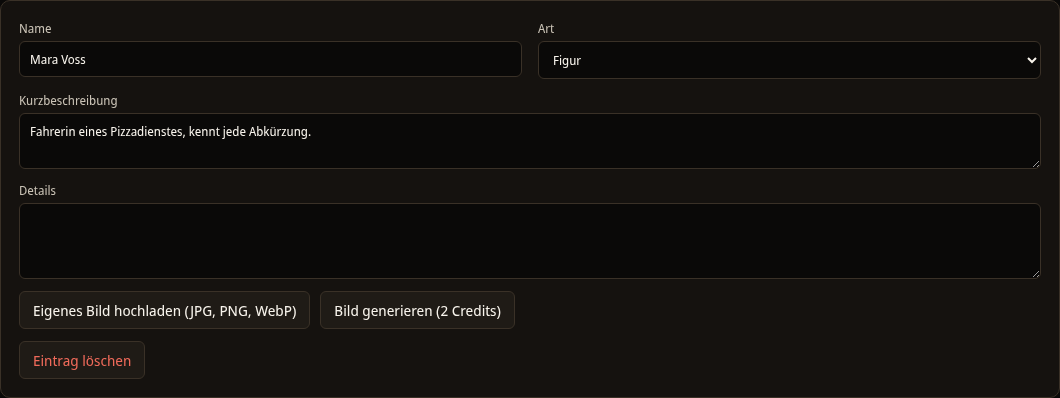
You can add an image to every entry of the series bible. Open the Series bible tab of your series and find these buttons at the entry:
- Generate image: The AI draws an image according to the description of the entry. If the entry already has an image, the button is called Generate again.
- Upload your own image (JPG, PNG, WebP): You choose a file from your device. JPG, PNG and WebP up to 15 MB are allowed. The Spielbuchschmiede checks the file before it accepts the image.
- Remove image: The image is detached from the entry.
If the file does not fit, you get a message, for example Only JPG, PNG and WebP are allowed. This is also described under Common error messages.
Image for the cover
On the Cover page, describe the motif under What should be visible on the cover? and select Generate motif. The page then reports Motif generated. The motif is AI-generated and uses credits. You enter the author and the back cover text on the same page. You can find more under Export and KDP package.
Images for maps
The image of a location map is created with Draw map. This is described under Map.