Sections and choices
A gamebook consists of sections. Choices connect them into a story with branches.
Creating sections
In the editor of a volume you create sections with the buttons at the top:
- + Section creates a normal section.
- + Combat creates a section with an opponent.
- + Ending creates a section that ends the story.
The first section you create is automatically the Start. A volume needs exactly one start. Validation reports if there is none or more than one. An empty volume can also be planned by the AI, as described under Your first book in ten minutes.
Click a section on the map to edit it on the right. More about the map can be found under Map.
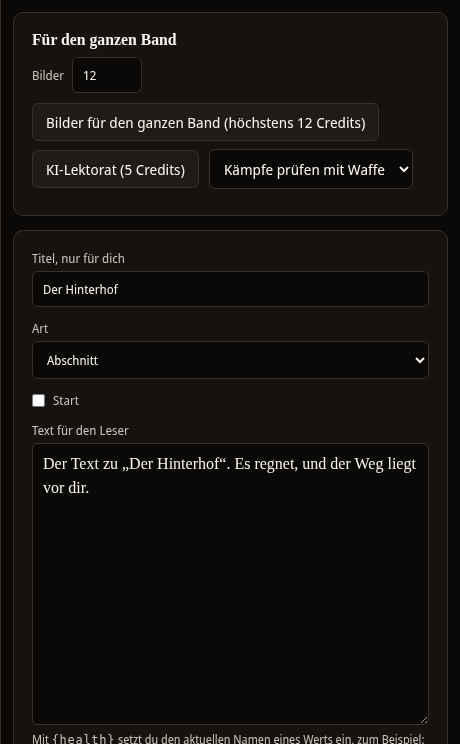
Editing a section
- Title, for you only: The title helps you find your way around. It does not appear in the book. Your reader only sees the number.
- Type: Section, combat or ending. For an ending you also choose whether it is a Good ending.
- Start: This section is the beginning of the volume.
- Text for the reader: The text that appears in the book. Changes are saved as soon as you leave the field.
- Notes for the AI and you: Here you note what the section is about. The AI functions use the notes.
- Write with AI: Under Request for the AI, write for example "more pace" and select Write with AI. The text of the AI replaces the section text. It uses credits and is AI-generated.
In the text, write the name of a stat in curly brackets, for example {health}. In the book and in the test play, the name of the stat is then shown, in this example "Health points". The text stays correct even after a rename. Which names exist is shown below the text field.
With Delete section you remove the section after a prompt.
Earlier versions
Earlier texts of a section are kept. Under Versions select Show to see the earlier texts with date and time. With Restore you bring an older version back.
Searching sections
The Search field at the top of the editor searches titles, texts and notes of all sections. As soon as you have entered two characters, the Results list appears on the right. Clicking a result opens the section.
Choices
At the end of a section your reader decides how to continue. Each possibility is a choice. In the book it appears as a line with the number of the next section, for example "Go into the yard: Turn to 3."
This is how you create a choice:
- Open the section and find the Choices card at the bottom.
- Select Add. A choice with the text "Continue" appears.
- Under Text, write what your reader does.
- Under Continue to, choose the section the choice leads to. With + New section, connected automatically the Spielbuchschmiede creates the next section right away, in a free spot on the map, and connects it. It is called "Section" with the next number, not like the choice.
You can also create a choice on the map. To do so, drag from the bottom point of a box to the top point of another. The Spielbuchschmiede then creates a choice with the text "Continue", which you rename afterwards.
With Delete choice you remove a choice. A choice without a destination is reported as an error by the validation.
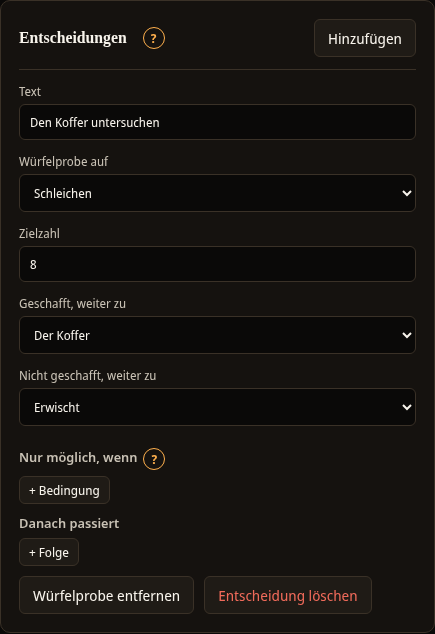
As a dice check
A choice can be a dice check. The result then depends on a random number. Select Convert to dice check on the choice and set:
- Dice check on: the stat that counts, for example Sneaking.
- Target number: the number that the random number and the stat together must reach.
- Success, continue to: the section on success.
- Failure, continue to: the section on failure.
The previous destination of the choice is kept: It now applies to Success, continue to. The Spielbuchschmiede points this out. Also choose the section for Failure, continue to, otherwise the validation shows an error. With Remove dice check the check becomes a simple choice again. Its destination is then the section that was set for Success. In the test play its button carries the addition (dice check). How a check is decided is described under Rules and random table from 0 to 9.
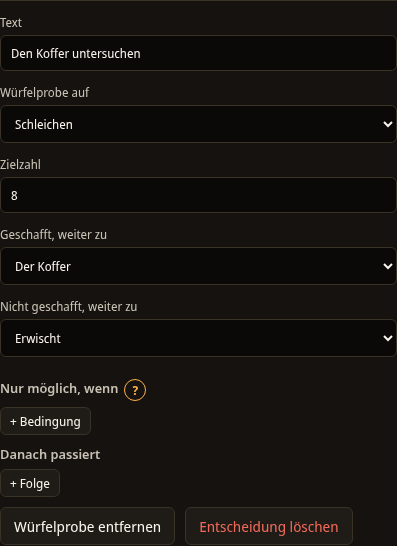
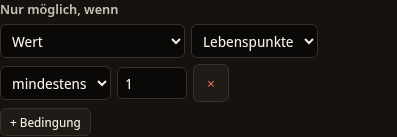
Conditions and effects
With conditions and effects you connect sections with the rule set. Both are available in every choice, and the effects also when entering a section.
- Only possible if: The choice only appears if the condition is true. With + Condition you choose what it depends on: a Stat, the Level, an Item, a Status, a Scar or a Group with AND/OR to combine several conditions.
- Afterwards, and On entering: With + Effect you define what happens. You can Change a stat, Give experience, give or take an Item, Give a weapon, Set a status or Give a scar.
Items and statuses must be created in the rule set beforehand. This is described under Rules and random table from 0 to 9.
Setting up combats
For a section of the type combat, the Combat card appears. There you set the Opponent, their Strength, their Health points and their Damage. With On victory, continue to, On defeat, continue to and On escape, continue to you decide where it goes afterwards. The Escape target is the number that the random number and Agility together must reach.
Numbers in the book
In the printed book the sections have numbers. The Spielbuchschmiede assigns them itself, and they do not follow the arrangement on the map. You see the numbers in the Book view. A reference such as "Turn to 3" always points to the correct number.